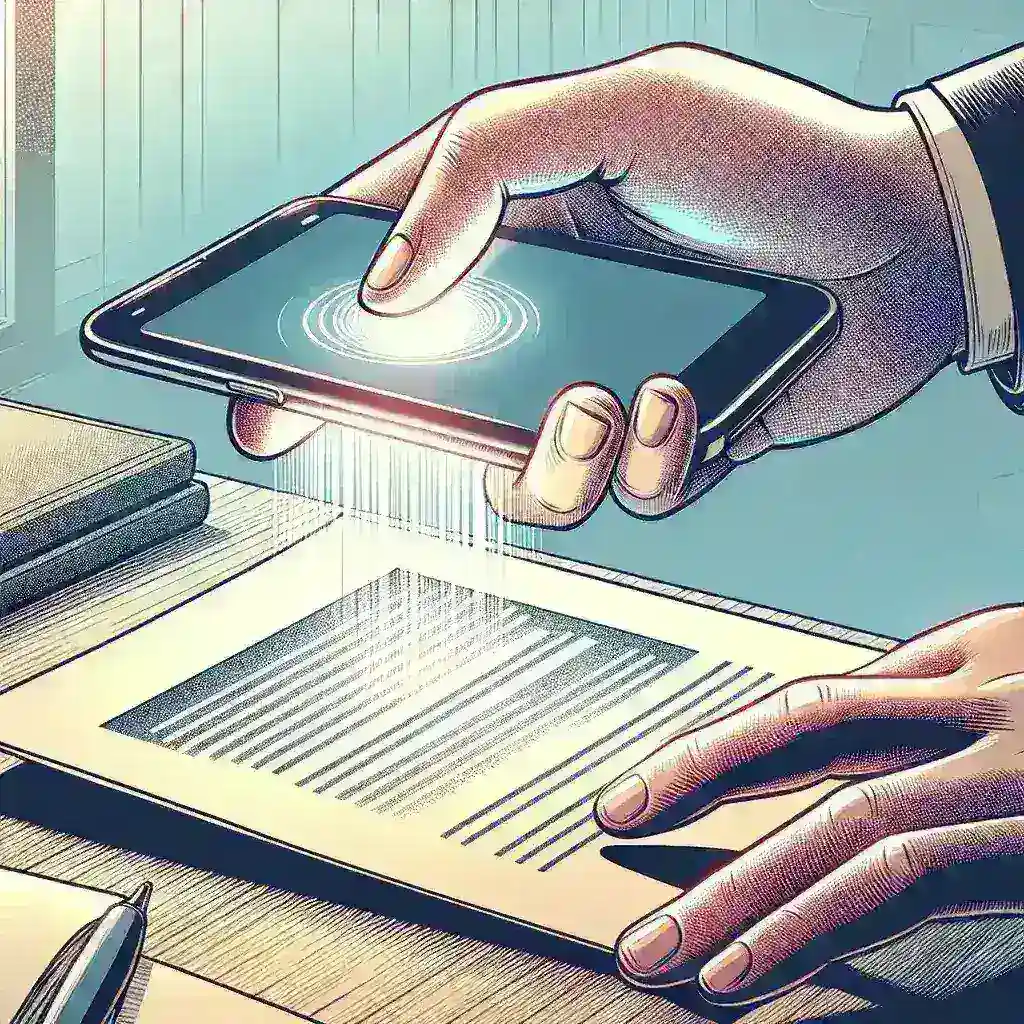
Effortlessly Digitize Your Documents: A Comprehensive Guide to Phone Scanning
In today’s digital age, the need to quickly and efficiently scan documents is more prevalent than ever. Fortunately, you don’t need a bulky scanner to achieve professional-looking results; your smartphone is perfectly capable! This guide will walk you through several methods for scanning documents using your phone, regardless of your operating system (iOS or Android).
Method 1: Using Your Phone’s Built-in Scanner
Many modern smartphones come equipped with a built-in document scanning feature, often integrated within the Notes or Files app. This is typically the easiest and quickest method. Here’s how it usually works:
- Open the Notes or Files app: The exact location varies depending on your phone’s manufacturer and operating system.
- Look for the Scan or Scan Document option: This is often represented by an icon of a camera with a document overlay.
- Position your document: Ensure the document is well-lit and flat for optimal results. The app will usually have guidelines to help you frame the scan.
- Capture the image: Take a picture of your document. Most built-in scanners automatically crop and enhance the image.
- Review and save: Once captured, review the scan for clarity. You can usually adjust the scan before saving it as a PDF or image.
Advantages: Simple, fast, readily available.
Disadvantages: Limited customization options compared to dedicated scanning apps.
Method 2: Utilizing Dedicated Scanning Apps
For more advanced features and control, consider downloading a dedicated document scanning app. Many free and paid options are available on both the App Store and Google Play Store. These apps often offer:
- Automatic edge detection: Accurately crops the document from the background.
- Perspective correction: Straightens skewed images to create a perfectly rectangular scan.
- Image enhancement: Improves image quality by adjusting brightness, contrast, and sharpness.
- Multiple page scanning: Easily combines multiple scans into a single PDF document.
- Optical Character Recognition (OCR): Converts scanned text into editable text.
- Cloud storage integration: Directly saves scans to cloud services like Google Drive or Dropbox.
Popular Scanning Apps: Adobe Scan, Microsoft Lens, Google Drive (built-in scanner), CamScanner (paid features available).
Advantages: Advanced features, high-quality scans, often more user-friendly.
Disadvantages: Requires downloading and installing an app; some apps may have in-app purchases or subscriptions.
Tips for Optimal Scanning
- Good lighting is crucial: Use natural light or a bright lamp to avoid shadows and ensure clear images.
- Use a flat surface: Avoid scanning documents on uneven surfaces to prevent distortions.
- Keep your phone steady: Use a tripod or other support for clearer, sharper scans.
- Experiment with different apps: Find the app that best suits your needs and offers the features you require.
- Save your scans in a well-organized system: Use folders and clear naming conventions to easily retrieve your documents later.
Beyond Basic Scanning: Advanced Features
Some advanced scanning apps offer features such as:
- Document signature: Add electronic signatures to scanned documents.
- Password protection: Secure your sensitive documents with password encryption.
- Batch scanning: Scan numerous documents at once.
By mastering these techniques, you can transform your smartphone into a powerful and portable scanning tool, eliminating the need for a dedicated scanner in many situations. For further assistance or to explore more detailed features, you can visit a dedicated resource website.
Leave a Reply